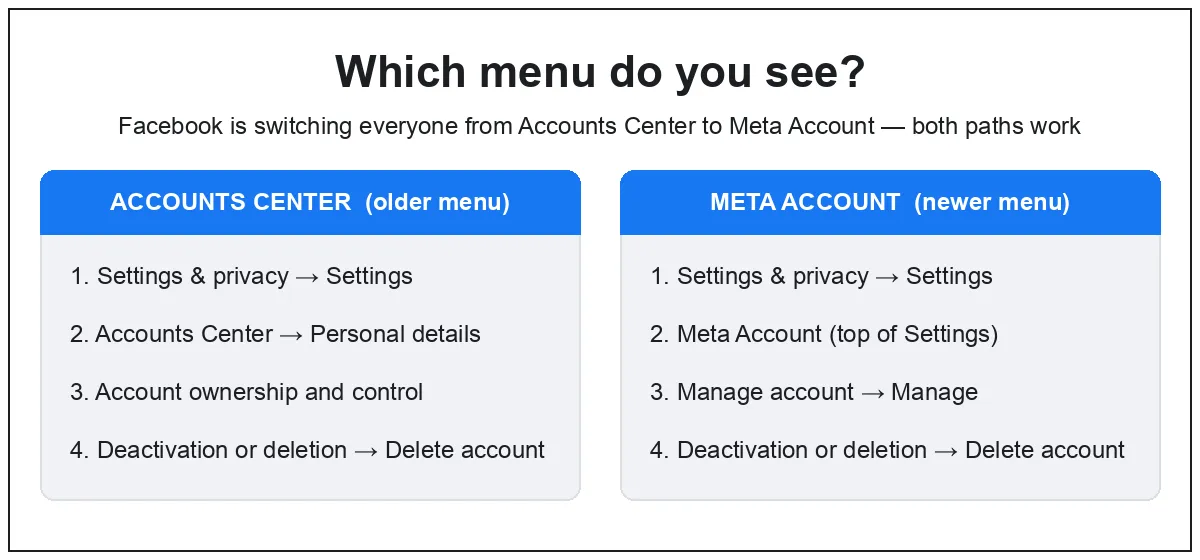
To permanently delete your Facebook account: open Settings & privacy → Settings, go to Accounts Center → Personal details → Account ownership and control → Deactivation or deletion, pick your account, choose Delete account, enter your password, and confirm. If your Settings show Meta Account instead of Accounts Center, use Meta Account → Manage account → Manage → Deactivation or deletion — same result. Facebook holds your data for 30 days in case you change your mind — after that, it’s gone for good.
Steps re-checked against Facebook’s Help Center in August 2026. Facebook moves these menus often, so labels may shift slightly.
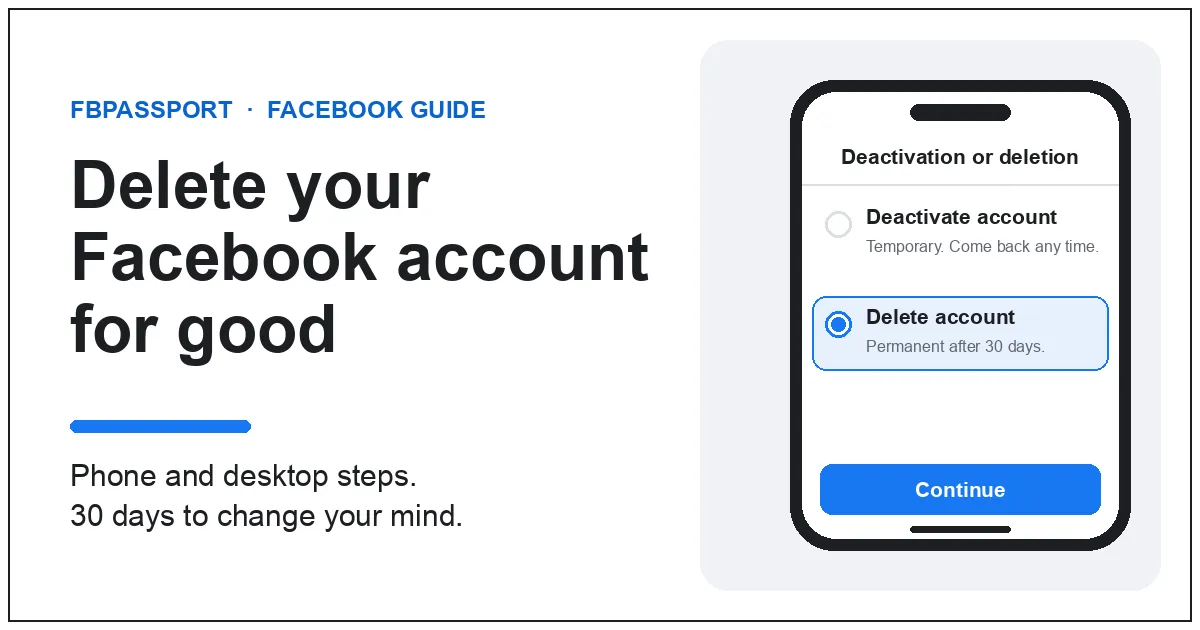
Delete vs. deactivate: which do you want?
These are two different things, so pick before you start:
- Deactivate = hidden but recoverable. Your profile disappears from Facebook, but nothing is erased. You keep Messenger, and you can come back anytime by logging in. Here’s how to deactivate instead.
- Delete = gone for good. After a 30-day grace period, your profile, photos, posts, and messages are removed permanently and can’t be recovered.
If you only need a break, deactivate. To delete for good, follow the steps below.
First: which menu does your account have?
Facebook started moving everyone from Accounts Center to a new menu called Meta Account in 2026. The switch happens account by account, so you might see either one. Open Settings & privacy → Settings and look near the top: if it says Accounts Center, use the next two sections; if it says Meta Account, jump to the Meta Account steps.
Delete your Facebook account (phone app)
- Tap your profile photo (or the ☰ Menu icon), then Settings & privacy → Settings.
- Near the top, tap Accounts Center, then Personal details.
- Tap Account ownership and control, then Deactivation or deletion.
- Pick the account you want to remove, choose Delete account, and tap Continue.
- Facebook asks why you’re leaving — pick any reason, enter your password, then confirm Delete account.
Delete your Facebook account (desktop)
- Click your profile photo in the top-right of facebook.com, then Settings & privacy → Settings.
- In the left menu, open Accounts Center, then Personal details.
- Click Account ownership and control → Deactivation or deletion.
- Select your account, click Delete account, then Continue to account deletion.
- Enter your password and click Delete account to confirm.
Seeing “Meta Account” instead? Use these steps
Same on phone and desktop:
- Open Settings & privacy → Settings.
- At the top, tap Meta Account.
- Go to Manage account, then Manage.
- Tap Deactivation or deletion, pick your account, and choose Delete account.
- Enter your password and confirm.
What happens after you delete your account
- 30-day grace period: deletion isn’t instant. Log back in within 30 days and it’s canceled. After that, it can’t be undone.
- Everything is removed: your profile, photos, posts, and videos are permanently deleted — you can’t get them back.
- Messenger stops working: you can no longer use Facebook Messenger. Messages you already sent may still be visible to the people who received them.
- Third-party logins break: anything you signed into with Facebook (Spotify, Pinterest, some games) loses access, so set up another login for those first.
- Meta Quest is affected: if you use Facebook to sign in to a Meta Quest, you’ll lose apps, purchases, and achievements tied to that login.
- Full erase takes up to 90 days: copies in Facebook’s backup systems finish clearing within 90 days.
Before you delete: do these first
- Download your info — in Accounts Center (or Meta Account), go to Your information and permissions → Download your information, pick your Facebook profile, and choose what to save. Once the account is gone, you can’t retrieve any of it.
- Set up new logins for any app or site you signed into “with Facebook.”
- Log out everywhere and clear your cache — a saved login can accidentally reactivate the account during the 30-day window.
Troubleshooting
Don’t see Accounts Center? Look for Meta Account at the top of Settings instead — Facebook is switching accounts over to the new menu through 2026. Still nothing? Update the Facebook app, or use the search bar at the top of Settings and type “deletion” — search jumps straight to it.
Deleted by mistake? Log back in within 30 days and choose Cancel deletion to stop the process.
FAQ
How long does it take to permanently delete a Facebook account? Facebook waits 30 days before it starts deleting, so you can still cancel by logging in. After that, clearing everything from its backup systems can take up to 90 days.
Can I recover my account after deleting it? Only during the 30-day grace period — log in and choose Cancel deletion. Once that window passes, the account and its content can’t be recovered.
Will deleting Facebook also delete Messenger? Yes. Messenger runs on your Facebook account, so it stops working when the account is deleted. Messages you already sent may still show on the other person’s side.
Does deleting Facebook delete my Instagram? No. Instagram is a separate account. Deleting Facebook doesn’t remove Instagram, even if the two are linked.
Conclusion
Deleting your Facebook account is a big, one-way step, so make sure it’s what you want — and download anything you’d miss first. If you’re not certain, deactivate instead and take your time. Either way, the steps above get it done in a couple of minutes.
Recommended:
How to Temporarily Deactivate Your Facebook Account
How to Find Today’s Memories on Facebook

Leave a Reply